Introduction
EDAX® OIM Analysis™ is the benchmark for functionality to analyze electron backscatter diffraction (EBSD) data for microstructural characterization. With the introduction of OIM Analysis 9.1, the analytical capability is coupled with a new user interface, reducing the learning curve for both new and existing users to maximize their analysis and gain a deeper understanding of their materials.
Examples and discussion
The interface employs a ribbon bar approach that looks familiar to other common software applications. The Basic ribbon is shown in Figure 1. Commonly used functions are available in this panel and are identified by both graphical icons and words to help facilitate identification and learning.
 Figure 1. Basic ribbon bar with Auto Analyze button for one-click analysis.
Prominently featured in the Basic panel is the Auto Analyze button. This button automatically creates a series of common EBSD outputs for general analysis, including an inverse pole figure (IPF) orientation map, EBSD pattern image quality (IQ) map, a phase map (if analyzing a multi-phase material), a grain map, and a corresponding grain size distribution. An example of this analysis on a duplex steel sample with additional sigma phase regions is shown in Figure 2. This Auto Analyze feature provides an instant one-click summary of the measured microstructure and guides any required subsequent analysis for a wide range of materials.

Figure 2. One-button basic analysis of a duplex phase steel with sigma phase present.
Users can now customize analysis on different materials using templates. This enables you to add desired maps, plots, and charts to the project tree. For example, you can specify the color scale on a map or plot, or change the angular range relative to a defined crystal direction for maps or charts. Once defined, you can save, reuse, or share the templates with other OIM Analysis users, or even drive reporting in EDAX APEX™ and OIM Analysis. Figure 3 shows templates designed for analyzing (111) fiber textures in FCC materials and for deformed microstructures.
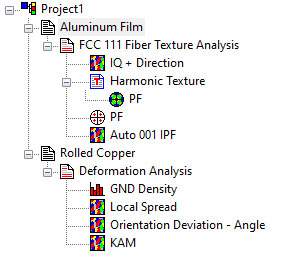
Figure 3. OIM Analysis project tree showing the analysis components of templates defined for FCC (111) fiber textures and deformation.
One-button analysis can be extended using these templates on the Analysis panel, as shown in Figure 4. In this example, the fiber texture and deformation analysis templates are added to the Auto Analysis button. The image shows the results of the fiber texture analysis on an aluminum thin film. This functionality allows for fast, consistent, and repeatable analysis for users when analyzing similar samples.
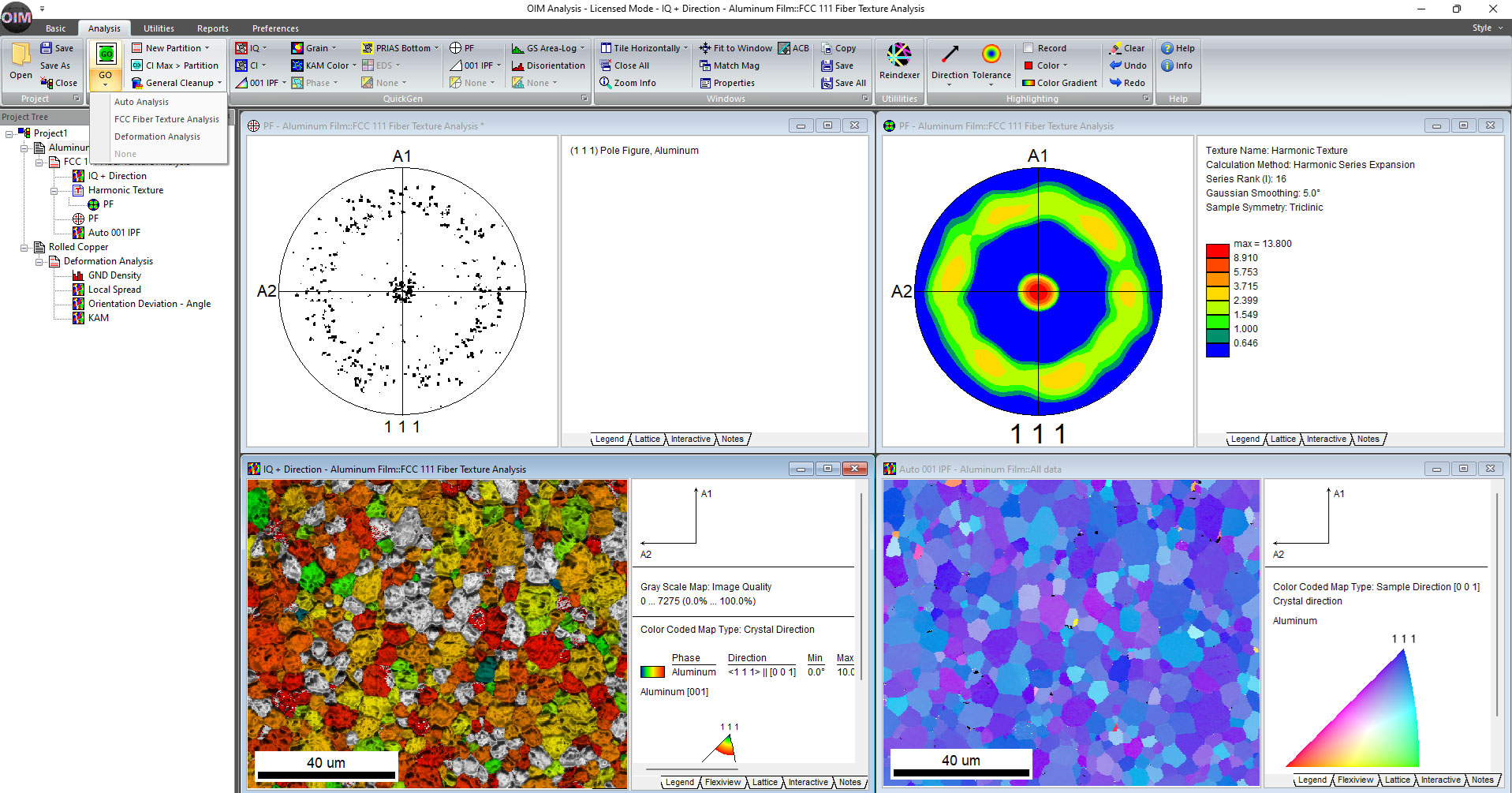 Figure 4. Analysis panel showing the one-button options for template-based analysis and resulting analysis of an aluminum film with a (111) fiber texture.
Conclusion
OIM Analysis 9.1 increases user productivity by coupling the analytical power of the program with a new user interface. This innovative approach enables one-button analysis that can be customized for specific characterization requirements to reduce the time to results and maximize the efficiency of the characterization process.